Working with Planes
You can add planes to a 3D view to clip datasets, regions of interest, multi-ROIs, and meshes along an arbitrary plane or planes. In addition to letting you interactively clip image data, regions of interest, multi-ROIs, and meshes, additional visual effects can also be applied to the clipped region of selected objects, such as look-up table functions, edge contrast, and window leveling.
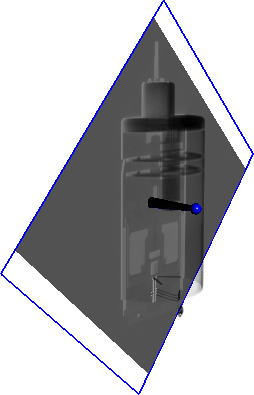
Plane in 3D view
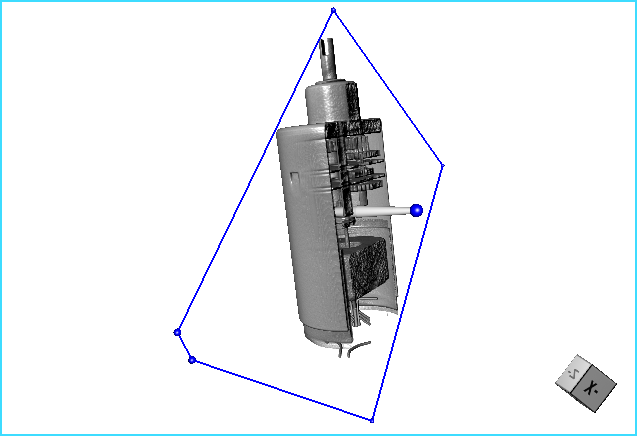
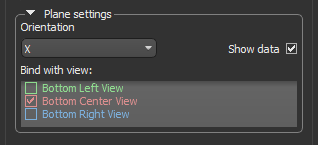
The options in the Plane settings box on the Data Properties and Settings panel let you choose an initial orientation for the selected plane or to bind a plane with a selected 2D view. You can also choose to show corresponding 2D data in the scene’s 3D view. As is the case for all other shapes, you can choose the additional visual effects you want to apply to the selected plane in the Visual effects box (see Shape Properties and Settings).
Plane settings
|
|
|
|---|---|
|
Orientation |
Lets you choose the initial orientation of the selected plane — along the X, Y, or Z axis. |
|
Show data |
If selected, data from the corresponding 2D view will be shown on the plane in the 3D view.
|
|
Bind with view |
Lets you link the selected plane to a 2D view. In this case, the controls available in the 2D view, such as the 3D Cursor, can be used to manipulate the plane. Note The option to bind a plane with a view is dependent on the number of MPR views in the current scene (see Scene Layouts and Views for information about selecting a scene view that includes 2D views). |
 How to Add a Plane
- Make sure that the scene in which you are working includes the 3D view.
You should note that working in a scene with all three MPR views will let you bind a plane to any view.
- Do one of the following:
- Click the Plane
 icon on the Shapes panel to add a new plane to the Data Properties and Settings panel.
 - Click the Multiple Planes
 icon on the Shapes panel to add up to three new planes to the Data Properties and Settings panel. The number of planes that will be added is equal to the number of 2D views in the current scene.
- Click the Plane
- Select the required plane in the Data Properties and Settings panel and change its visibility in 3D, if required.
The visual plane and its control handle appear in the 3D view.
- Choose an initial orientation for the plane or bind the plane with a 2D view, optional.
- Adjust the plane as required.
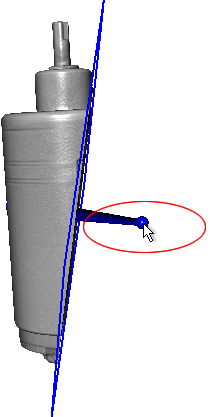
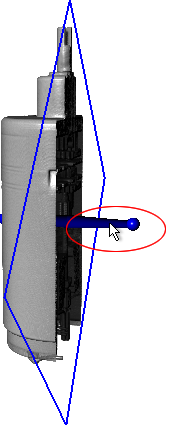
- Drag either end of the plane handle to adjust its angle.
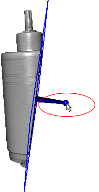
Note The object in the illustration above was clipped for clarity. Clipped must be selected as a visual effect to be applied.
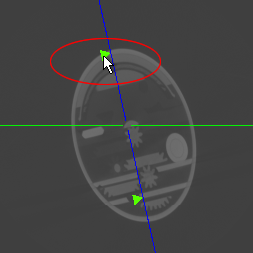
You can also adjust the angle of a bound plane by dragging the Angle marker on the 3D cursor in the MPR views of the dataset. See Using the 3D Cursor for more information about the 3D cursor controls.
- Drag the handle to translate the plane along the selected angle.
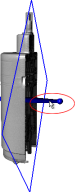
You can also translate bound planes by scrolling the associated 2D view or by dragging the 3D cursor in the MPR views of the dataset (see Using the 3D Cursor).
- Drag either end of the plane handle to adjust its angle.
- Check the Show data option for the selected plane, optional.
If selected, data from the corresponding 2D view will be shown on the plane in the 3D view.
- Select the visuals to which you want to apply the plane effects to.
To apply the Plane effects, check the required object(s) in the Visuals list on the Data Properties and Settings panel.
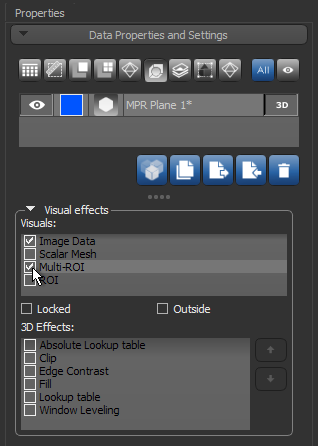
- Lock the plane in the 3D view by checking the Locked option, recommended.
- Select the required effect(s) and adjust their associated properties, as required (see Visual Effects).
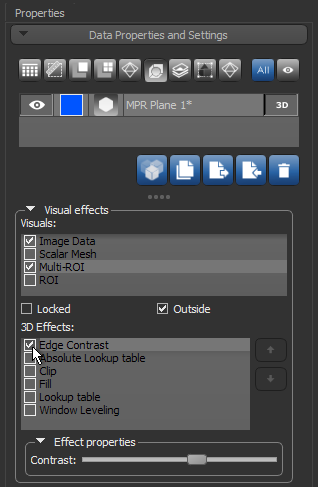
Note You can apply the selected effects to the outside or inside of the visual plane by checking the or unchecking the Outside option.